Menubar

Showing posts with label Mobile Apps. Show all posts

3.4.20

ServicePlus - Unified eServices platform app

ServicePlus (http://serviceonline.gov.in) is a metadata-based, single, unified, eService Delivery & Grievance Redressal framework that can be configured to rapidly e-enable government services to its customers including citizens & businesses. It supports multi-tenancy architecture that enables each tenant to configure their services as per their requirement. It supports UNICODE thus enabling services to be accessed in local languages. 


ServicePlus provides a host of benefits to citizens. It provides a single unified portal to the citizen for accessing any service, track submitted applications, subscribe to alerts etc.

ServicePlus (https://serviceonline.gov.in) has been recognized by several Government Departments across.7 the States. It is being used by 24 States and 5 Central Line Departments delivering more than 750 services. The services provided by the States are mainly Regulatory and Statutory in nature. While the states of Maharashtra & Chhattisgarh are using ServicePlus under e-Panchayat MMP; Bihar, Jharkhand, Tripura, Meghalaya and Sikkim are using it under e-District MMP. Uttar Pradesh, Himachal Pradesh, Mizoram, Odisha, Kerala, Assam etc are using this framework for services beyond those identified under e-District. ServicePlus is implemented in Haryana under the brand name SARAL whereas in Karnataka it is called SevaSindhu 2.0. 


ServicePlus provides a variety of modes to applicants for submission of applications. Applications can be submitted online, through kiosk or in a Government office. This is decided based on the nature of service, availability of kiosk infrastructure etc.. The nature of services varies from Statutory to regulatory to Utility Services. 


The services use some and/or combination of the following features provided by the framework: 

 • Submission of applications through online, kiosk or Government offices 
• Acknowledgement Slip 
• Aadhaar based demographic authentication 
• eSign in application form and/or annexures as well as output certificates 
• Payment through different Payment Gateways (like PayGov, SBI ePay, PayU), CSC eWallet, eTreasury implementations of various states 
• Digital signature of the delivered documents (certificates/license/ticket etc) 
• Configurable Server Signed QR code on the delivered documents 
• Service delivered online, through kiosk and through Government offices 
• Communication to officials and applicants through email and SMS 
• Dedicated channels for service definition and application processing 
• Change requests are handled through service versioning 
• Forms for officials to fill in their details and comments 
• Completely automated workflow 
• In-built rule engine to facilitate rule injection using MVEL
• Dynamic output generation using velocity templates 
• Citizen as a workflow player 
• Seamless integration with isolated data/process through webservice 
• Configurable service specific Reports 
• Participation of officials belonging to different departments in delivering a service 
• Separate URLs for service, department and State 
• Each document generated is identified through a unique URL 
• Automated integration with DigiLocker 
• Automated integration with eTaal 
• Facility to extract complete data of a service 
• Unified mobile app which can be configured for the use of any ServicePlus instance 
• Separate mobile app for workflow players 
• Automated integration with RAS (Rapid Assessment System) 
• Pendency Report 
• Analytics 
• Bulk processing of applications


Current Version:  2.0.1
Size:  26M
Requires Android:  4.2 and up


Tags: eServices, How to, Apply, Central, State, Govenment, Services

Aarogya Setu - App for every Indians to fight against COVID-19


Aarogya Setu is a free android app developed by Govenment of India's, National Information Center for e Governance. 

 Aarogya Setu is a mobile application developed by the Government of India to connect essential health services with the people of India in our combined fight against coronovirus, COVID-19. The App is aimed at augmenting the initiatives of the Government of India, particularly the Department of Health, in proactively reaching out to and informing the users of the app regarding risks, best practices and relevant advisories pertaining to the containment of COVID-19. 


Current Version: 1.0.1 

Size: 3.6M 

Requires: Android 6.0 and up


Tags: Covid-19, coronovirus, IndiaFightsCorona, Health, Mobile, Application, Govenment, India, eGovernance,

18.4.16

RBI launched the Unified Payment Interface (UPI), an app that enables instant online bank payments

With the UPI, funds can be transferred using just four steps. All one needs to do is put in the UPI id of the beneficiary, select the amount they wish to transfer, select ‘send’ and reconfirm the payment with a mobile pin. Its as simple as that!

The RBI recently launched the Unified Payment Interface (UPI). The UPI is best explained as an app that enables instant, online bank payments.

Today, transferring funds to someone online can become a tedious process. You need to add the person as a beneficiary, get details like their IFSC code, bank account number, branch, etc. Thanks to the UPI, this will soon be history.

The UPI is all set to become a game changer in the e-commerce sector. Shopping online will become easier since making online payments need not include the rigamarole of entering your card number, expiry date, CVV code and password. Using the e-commerce firm’s UTI id, payments can be made in a jiffy!

The same holds true for cash-on-delivery payments as well. While customers can pay the e-commerce firm directly, they can also pay the delivery boy using his UPI id or – better still – using the QR code the delivery boy carries on his UPI app!

The Economic Times reports that 29 banks are a part of the UPI network. However – in what is yet another bonus for customers – any bank’s systems can be used on the UPI to make payments or transfer money.

Ten banks, including ICICI, Axis, YES Bank, Punjab National Bank and Andhra Bank are currently testing the application.

Source: http://www.thebetterindia.com/

17.4.16

YouTube for Android's new feature Background Buffer

Sree's Tech Blog: YouTube for Android's new feature Background Buffe...: Did you see this message: "paused videos keep buffering if you leave the app" the message in YouTube's Android  app, after...

19.8.13

MOBOGENIE Your Android on your PC

                   Mobogenie is a unique Android Community that lets Android phone users manage their devices from a PC.(Download Desktop Application) The seamless experience not only lets you control your android in a much smoother way, but the problems of a touch screen are also neutralized since you can publish your SMS using your PC. Not only this managing Multimedia and Applications on your Phones becomes as easy as a click.


With Mobogenie you can: 
  • Send / control your SMS messages..
  • Add/ copy/ move/ delete/ manage files in external SD Card.
  • Install apk file stored from your computer.
  • Access Images, Music and video files. 
  • Backup your Contacts, Messages, Photos, Videos and music files.
  • All from your desktop!


With Mobogenie you have immediate access to thousands of applications and games provided by Mobogenie. You can publish, convert, and share Personal Content of all types for your cell phone – Videos, Photos, Ringtones, Applications and Games.
Upload your material from your PC and use Mobogenie to convert and adapt it for your cell phone: in few, easy, steps!


MOBOGENIE is your Android on Your PC – dedicated to one and all who relishes personalization and entertainment amenities for Android.


MOBOGENIE aims to become the largest Android Web Community in the World.


  Here is the Tutorial...


Back Up My Phone

 Click on the 'Backup' button under the 'My Phone' tab of the app. Select the data you want backed up.

Check the location where you would like the backed up data to be stored, or click on the 'Change' button to save the data to a desired location.


Click on 'Back up' to start the process. Keep your phone connected during this time. You might want to check out our store to install free apps and games at 0 data charges, or wait till the process is complete. You can now view your backed up data.


Restore My Back UP

Click on the 'Restore' button on the home page of the app. Select the folder with the data you want restored.
Click on 'Restore' to begin the process. Keep your phone connected during this time. Once the process is complete, you might check the data that has been restored.


Download Apps

Check out our Showcase on the top panel for free apps, games, wallpapers and ringtones that you would like to download on to your phone. 

Browse through our collection of featured and categorized content to help selection, or search for the content you desire. Click on 'Install' to start the download process. Remember, you are downloading all this at 0 data charges!


Download wallpapers


Check out our Wallpapers on the top panel for free, stunning images that you would like to download on to your phone. Browse through our collection of featured and categorized content to help selection, or search for the content you desire. 

Click on 'Download' to start the process. Remember, you are downloading all this at 0 data charges!


Download Ringtones 


Check out our Ringtones on the top panel for free, great ringtones that you would like to download on to your phone. Browse through our collection of featured and categorized content to help selection, or search for the content you desire. Click on 'Download' to start the process. Remember, you are downloading all this at 0 data charges!  


Download Videos 

Check out our Videos on the top panel for awesome videos that you would like to download on to your phone. If you are unable to preview the videos, you might be required to download and install a Flash player. Follow the link for the same.

http://upload.mobogenie.com/mu/release/flashplayer11.4.exe Browse through the collection of featured and categorised content to help selection, or search for the content you desire. Click on 'Download' on the top panel to start the process. Remember, you are downloading all this at 0 data charges! 

Create new contact 

Click on 'Contacts' on the home page. You will find a set of slots for a name, mobile number and email to create a new contact. Click on 'Save' once you have entered the information.


Edit a contact 

Select the contact you want to edit. The information of the contact will appear on the right-hand side. Click on 'Edit' to make changes or add additional information. Click on 'Save' once you are done.


Chat with user through SMS manager 

Select the conversation you wish to continue by clicking on it. Enter text in the box below and click on 'Send'. You can also send messages from the 'Contacts' section under the My Phone tab.


Install new app from your computer

Click on 'Install.apk' on the home page of the app. Click on 'Add File', locate and select the .apk file you would like installed. 'Confirm' to start the installation process. Keep your phone connected till the process is complete.


Move app from internal storage to SD card

Click on 'Apps' on the home page of the app. Select the app you want moved to the SD card. Please note that some apps are designed to be stored on your phone memory only, and are likely to not function properly if they are moved.


Importing/exporting Pictures/ringtones/Videos


Click on 'Music', 'Pictures' or 'Videos' depending upon the kind of data you would like to import. Click on the 'Import Picture / Music / Video' button on the panel. Select the files and click on 'Confirm' to start the import process. Keep the phone connected till the process is completed.


You Can Download the Application by the clicking the button here.


4.5.12

Mobile App for Live Train Running Information from Indian Railways

Start using the new and fast National Train Enquiry System (NTES) / TrainEnquiry travel app to make planning and managing your trip a lot easier. Now you have the power of access within your hands – to live status information of more than 8000 trains across the country in real time – whether you are traveling, receiving, or seeing off family and friends!

No matter where you are, you can look up train schedules and status across the country. Do not let an untimely change in running schedule cost you valuable hours when it could only take minutes!

The NTES app is 100% free and has easy compatibility with most of the modern internet-enabled smartphones (see device support list along with supported mobile browsers).

How does it work?

  • Confirm that your smartphone is compatible with the current version of the app (see compatible list) and is internet enabled.
  • Using any installed mobile web browser, type in and go to the following internet address – http://www.trainenquiry.com
  • If your browser / device is recognized as compatible, you will be redirected to the NTES / TrainEnquiry.com Mobile App. Use it in the same manner as you would use TrainEnquiry.com on the regular web.
  • Do not forget to bookmark ‘http://www.trainenquiry.com’ for easy access for your future visits.
About TrainEnquiry.com

29.3.12

Science@Mobile - Learn science on mobile

Now learn science in your convenient way, on the go! 

The application-Science@Mobile-was launched as part of the two-day National Science Day celebrations by Director of Inter-University Accelerator Centre Amit Roy. "The number of mobile phones in the country have touched almost a billion. The penetration of mobiles has been immense, so the service would be of great help to create the right culture for science," he said. 

Vigyan Prasar, an autonomous organisation under the Department of Science and Technology, and the IGNOU jointly introduced this service to tap into the potential of mobile phones to popularise science even into rural areas where mobile phones have made substantial penetration. 
Science@Mobile Webste
'Science@Mobile' will provide all types of information on science subjects including news, important days and events, facts, humour, quotes, about scientists, health tips and green tips to its subscribers free of cost. In addition, the content has been grouped into three categories with the first one not requiring any science background, second one requiring basic science literacy, while the third is for people with science background. 

Users can subscribe to the service by messaging "SCIMBL" to 092230516161 or clicking the link provided at Vigyan Prasar website. "The service currently is available only in English. Efforts to provide SMSs in Hindi is in progress and will be available within a week or little more," said O P Sharma, Project Coordinator of Science@Mobile service. For bringing the service in regional languages, he said, Vigyan Prasar would have to collaborate with state agencies. "We are looking into that aspect," he said. 

National Science Day is being celebrated for two days-February 28-29 -- at the National Science Centre. National Science Day falls on February 28 every year and is in celebration of the day in 1928 when Indian scientist Sir C.V.Raman announced the discovery the Raman Effect in light scattering which won him the 1930 Nobel Prize in Physics.

10.3.12

AirDroid - Control your anroid phone wirelessly

AirDroid is a fast, free app that lets you wirelessly manage & control your Android devices (phone & tablet) from a web browser. It's designed with the vision to bridge the gap between your Android device and web browser, on desktop computers or tablet devices, on Windows or Mac.
Home Screen in your browser

Get started 
Download and install AirDroid app on your Android devices, start the app and open your favorite web browser, input the address and Dynamic Password to login to AirDroid Web Desktop. 

Connect with AirDroid web desktop
The Android device and computer need to be connected to the same WiFi network to be able to connect. 
1.    Open AirDroid on your Android device and tap Start. The web address (looks like http://192.168.xxx.xxx:8888) to visit will be revealed, and a new Dynamic Password will be generated or the Predefined Password will be displayed (looks as predefined). 
2.    Open your favorite web browser to visit the web address above. Enter the Dynamic Password or Predefined Password from the previous step and click Login. 
3.    You'll login to the AirDroid Web Desktop.
Apps installed by you
Don't have WiFi network?
Some Android devices can be used as a portable modem in that you can hook it up to your PC via USB or tethering so you can use it as a Wi-Fi hub. After you have connected your computer to the WiFi hub you can use AirDroid to manage and control your Android device. 
Warning: Using your Android phone as a WiFi hub enables your computer to use your phone's data service, so please make sure you have an affordable data plan. 
Access files in your mobile
Via USB:
Use the USB cable that came with your phone to connect your Android device to your computer.
1.    Press Home, press Menu, and touch Settings to open the Settings application.
2.    Touch Wireless & networks > Tethering & portable hotspot.
3.    Check USB tethering.
4.    Uncheck USB tethering to stop sharing your data connection. Or just disconnect the USB cable.
Tethering:
Press Home, press Menu, and touch Settings to open the Settings application.
Press Wireless & networks > Tethering & portable hotspot.
Check Portable Wi-Fi hotspot.
Uncheck Portable Wi-Fi hotspot to stop sharing your data connection via Wi-Fi.
Browse edit SMS from desktop
Free
AirDroid is completely free. You can download it for free from the Android Market here.
Safety
Your Data security is among the top priority of AirDroid and industry standards are strictly implemented. And we'll never store your personal data without your explicit consent.
Requirements
The AirDroid Android app should be compatible with most Android devices running Android 2.1 or later (4.0 is not well supported yet). The Web Desktop should be compatible with most modern web browsers, including Chrome 12 or later, Firefox 3.6 or later, Safari 5.0 or later (For best performance IE is not recommended). Support for mobile browsers, like Safari on iPad, is experimental. The Android device and computer need to be in the same WiFi network to connect.


20.2.12

Maverick - GPS off-road navigation app for Android devices


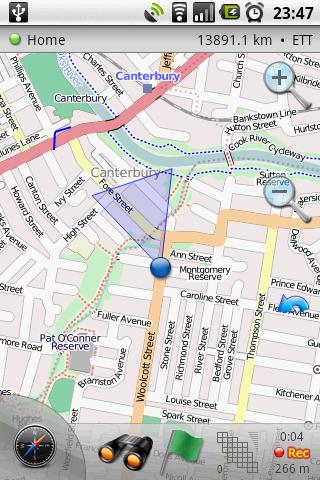
Maverick is a GPS off-road navigation app for Android devices. It automatically caches all your maps for offline use so that you can access them even without an Internet connection. This app is great for hiking, boating, geocaching, and other outdoor activities.

  • Multiple global and regional online maps Including Bing, Yandex, Open Street Maps, OSM Cycle, OSM Public Transport, Multimap (UK), OutdoorActive (Germany, Austria, South Tyrol), Cykloatlas, HikeBikeMap (Germany), Open Piste Map, NearMap (Australia), and many others. 
 
  • All maps are automatically cached for offline use You can use Mobile Atlas Creator to create or download map tiles and MAPC2MAPC to manipulate maps and convert them between different platforms and software. 
 
  • Go caching! Create custom geocache queries on geocaching.com. Queries that contain 500 geocaches or fewer can be delivered as an email attachment. 
 
  • Share your current or planned location Send your address, GPS coordinates, and a link to Google Maps or even a map image. 
 
  • Save places you visit Waypoints are stored in a KML file that can be viewed and edited in Google Earth
 
  • Navigate easily A built-in radar shows the direction, distance, and estimated time to a point of interest. 
 
  • Record your tracks with a single tap Export tracks as GPX files that can be viewed in Google Earth and other programs
 
  • Upload tracks to GPSies.com You can use GPSies.com to view and download tracks that have been recorded by a GPS device. Please note that a free account is required for uploading. 
 
  • Trip computer See your speed, altitude, pitch, etc. 

Link for Android Market


Important GPS tips: It can take about 45 seconds to acquire satellite signals when you first start the application, or roughly 15 seconds if it has been used recently. Because the signal cannot pass through solid non-transparent objects, GPS requires an unobstructed view of the sky to work correctly. Thus, signal reception can be degraded by tall buildings, bridges, tunnels, mountains, etc. Also, moving around while locking onto several satellites makes it harder for those separate signals to triangulate your exact location. Please try to stand still when receiving a GPS fix, unless there is absolutely no alternative.

'Here I am' Android App - Let people know where you are throgh SMS


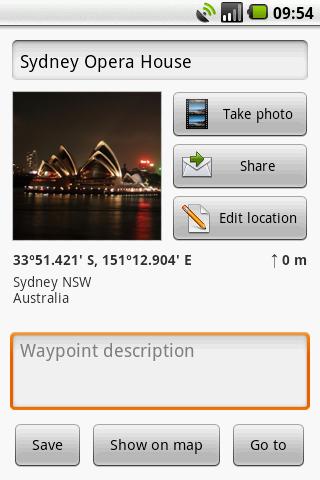
Let people know where you are! This application can send an SMS or email containing your coordinates and a link to Google Maps. This link can also be opened in the Maps application on an Android device or iPhone, and can be used as an endpoint for driving directions.
This app can utilize location information from both GPS satellites and wireless networks. Using GPS satellites to track location allows for maximum accuracy, so it is the application's preferred method. If you have the "Use GPS satellites" option disabled under the Location & security settings on your device, Android will try to determine your location via a technique called triangulation that depends on availability of cell tower and Wi-Fi access points.

Example message
My Location:
48°51'28.99", 2°17'39.34"
Parc du Champ de Mars, Paris
http://maps.google.com/maps?q=48.85805,02.29426


Additional features
  • Copy the current location to clipboard.
  • Insert the last know location.
  • Open your current location in the Maps app.
  • Specify output coordinates display format.
  • Display either the address or elevation.

 
Important GPS tips: It can take about 45 seconds to acquire satellite signals when you first start the application, or roughly 15 seconds if it has been used recently. Because the signal cannot pass through solid non-transparent objects, GPS requires an unobstructed view of the sky to work correctly. Thus, signal reception can be degraded by tall buildings, bridges, tunnels, mountains, etc. Also, moving around while locking onto several satellites makes it harder for those separate signals to triangulate your exact location. Please try to stand still when receiving a GPS fix, unless there is absolutely no alternative.


Link for Android Market

SendFile - Can send, drag and drop a file to Sony Ericsson Mobile

With SendFile you can send any file to an Ericsson mobile phone, including:
  • MP3 music (*.mp3).
  • GIF and JPEG pictures.
  • E-Melody (*.emy), I-Melody (*.imy) and MIDI (*.mid) melodies.
  • vNotes and vToDo.
  • Themes (*.thm).
  • Any other files supported by the phone.
You can drag and drop a file to Ericsson SendFile or use command line, as well as Explorer "SendTo" menu. Tested with SonyEricsson T68i, K700i and Bluetooth connection.


Requirements

  • Ericsson mobile phone with OBEX Support
  • Irda/Bluetooth/Cable connection
 
SendFile.exe